A dual monitor setup is one of those upgrades people wonder how they lived without. Email on one screen, work on the other. A game on the main screen, Discord and a guide on the second. Spreadsheets side by side without constant alt-tabbing. Getting it working is usually a five-minute job, as long as you check a couple of things first.
Quick version: plug both monitors into your graphics card (not the motherboard), open Settings, System, Display, choose Extend these displays, then drag the screens to match where they sit on your desk.
What you need for a dual monitor setup
- Two monitors. Matching models are easiest, but any two will work.
- Two free video outputs on your graphics card, or a dock for a laptop.
- The right cables, ideally DisplayPort for high refresh rate screens.
- Desk space, or a dual monitor arm.
That’s genuinely it. A dual monitor setup doesn’t need special software or an expensive graphics card.
Step 1: Check your ports
Look at the back of your PC. If it has a separate graphics card, its outputs sit lower down in a horizontal row, usually a mix of DisplayPort and HDMI. Plug both monitors in there.
The ports higher up on the motherboard only work if your processor has built-in graphics, and they’re typically disabled when a graphics card is installed. Plugging a second screen into the motherboard is the most common reason a dual monitor set up doesn’t work. Processors ending in “F” have no built-in graphics at all, so those ports do nothing.
Most modern graphics cards drive three or four screens, so two is easy. Use DisplayPort where you can, especially for high refresh rate monitors. Make sure the cables match what the monitor supports, too. An old HDMI cable can limit a 144Hz screen to 60Hz.
Step 2: Connect and extend
- Plug both monitors in and switch them on.
- Press Windows and P and choose Extend. This makes the two screens act as one large desktop.
- If the second screen stays blank, open Settings, System, Display and click Detect under “Multiple displays”.
Step 3: Arrange the screens to match your desk
In Settings, System, Display, you’ll see two numbered boxes. Click Identify to show which number is which screen. Then drag the boxes so they match the physical layout. If the left monitor is shown on the right, your mouse will disappear off the wrong edge, which is confusing for about ten seconds and then very annoying. Getting the arrangement right is what makes a dual monitor setup feel natural.
Line up the tops or the middles of the boxes too, especially if the monitors are different sizes. That way the mouse moves smoothly between them without jumping up or down.
Step 4: Choose your main display
Click the screen you look at most and tick Make this my main display. The main display gets the Start menu and taskbar notifications, and it’s where most programs and games open first.
Step 5: Set resolution, scaling and refresh rate
Each screen has its own settings. Click a screen, check the resolution is set to its native (“recommended”) value, and adjust Scale so text looks a similar size on both. For refresh rate, go to Advanced display and pick the highest rate for each monitor. Windows 11 handles two screens with different refresh rates well, so a 144Hz gaming monitor next to a 60Hz office screen is fine.
Step 6: Set up the taskbar and windows
Under Settings, Personalisation, Taskbar, Taskbar behaviours, choose whether the taskbar appears on both screens. Then use Snap to organise windows: drag a window to the edge of a screen, or hover over its maximise button to choose a layout. Pressing Windows, Shift and an arrow key moves a window to the other monitor instantly.
Step 7: Get the ergonomics right
How you place the screens matters as much as the settings. If you use one screen far more than the other, put it straight in front of you and the second one off to the side, angled towards you. If you use both equally, put the join between them in the centre. Keep the tops of both screens at or just below eye level, and at about arm’s length.
Matching monitors, same size and resolution, make the best dual monitor setup because everything lines up neatly. A dual monitor arm clamps to the desk, lets you set both screens at exactly the same height and frees up the space underneath. Our gaming setup guide has more on desk depth and lighting.
Step 8: Fix the common problems
- Second screen not detected: check it’s plugged into the graphics card, try another cable and port, and update the graphics driver.
- Stuck at 60Hz: use DisplayPort or a newer HDMI cable, and set the refresh rate in Advanced display.
- Blurry text on one screen: set it to its native resolution and adjust scaling.
- Games open on the wrong screen: set the correct main display, or choose the monitor in the game’s display settings.
- Flicker or black screens in games: mixed refresh rates can occasionally cause this. Updating the driver usually fixes it.
Gaming with two monitors
A dual monitor setup is brilliant for gaming: chat, music, a stream or a wiki on the side while you play on the main screen. Run games in borderless windowed mode if you alt-tab often, because it switches between screens instantly. The second monitor adds only a small amount of work for the graphics card when it’s showing static content. If you’re choosing a new main screen, our guide on how to choose a gaming monitor covers what to look for.
Dual screen monitor setup with a laptop
Laptops can run two external screens through HDMI, USB-C or a docking station. Check what the laptop’s USB-C port supports: some carry video, some don’t. A USB-C dock with two display outputs is the tidiest dual screen monitor setup for a laptop, especially one you plug in at a desk every day.
Going beyond two screens
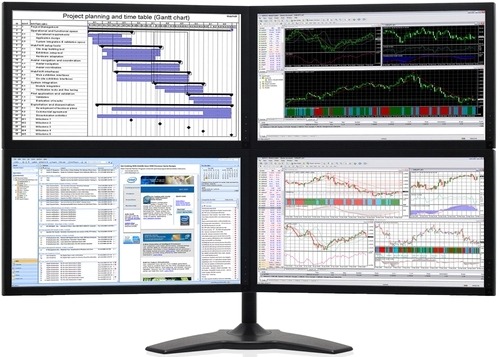
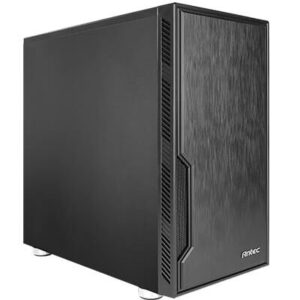
Traders, video editors and developers often run three or four monitors. The process is the same, but you’ll want a graphics card with enough outputs and a processor and memory that handle lots of windows comfortably. For more on that, our guides to home office and trading desks cover bigger setups, and Wikipedia’s overview of multi-monitor setups covers the different ways screens can be combined. The systems below are built to drive several screens. You’ll find more in our office computers:
Dual monitor setup questions
Do I need a special graphics card for two monitors?
No. Almost every graphics card made in the past decade supports at least two screens. Check it has two outputs that match your monitors.
Can I use two different monitors?
Yes. Different sizes, resolutions and refresh rates all work. Matching monitors just look neater and feel more consistent.
Does a dual monitor setup slow down gaming?
Barely, if the second screen shows static content. A video playing on it uses a little more graphics power, but rarely enough to notice.
What’s the best dual monitor setup for work?
Two matching 27-inch 1440p screens on a dual arm, with the one you use most straight ahead. It’s comfortable, sharp and gives plenty of room for side-by-side windows.
Why won’t my dual monitor set up extend the desktop?
Press Windows and P and choose Extend. If that option is missing, Windows isn’t seeing the second screen, so check the cable and port.
How do I move the taskbar to the other screen?
Set that screen as your main display in Settings, System, Display.