Knowing how to choose a gaming monitor saves you from the most common mistake we see: a brilliant screen paired with a PC that can’t drive it, or a fast PC stuck behind a slow, washed-out display. The monitor is the part of your computer you look at every second you use it, so it’s worth getting right.
Short version: pick the resolution first (1080p, 1440p or 4K), match it to your graphics card, then choose the fastest refresh rate and best panel type your budget allows. For most people in 2026, a 27-inch 1440p screen at 144Hz or higher is the sweet spot.
Resolution: 1080p, 1440p or 4K
Resolution is the number of pixels on the screen. More pixels means a sharper image, but every one of them has to be drawn by your graphics card, many times a second. That’s why resolution and graphics card always need to be chosen together.
| Resolution | Best screen size | Graphics card it suits |
|---|---|---|
| 1080p (1920 x 1080) | 24 inches | RTX 5050, RTX 5060 |
| 1440p (2560 x 1440) | 27 inches | RTX 5060 Ti, RTX 5070, RTX 5070 Ti |
| 4K (3840 x 2160) | 27 to 32 inches | RTX 5080, RTX 5090 |
At 24 inches, 1080p still looks fine. Stretch it to 27 inches and the pixels become visible, which is why 1440p has become the standard size for a gaming computer monitor at that size.
1440p vs 4K: which is better for gaming?
The 1440p vs 4K question comes down to what you value more: frame rate or sharpness. A 27-inch 4K screen is noticeably crisper, especially for text and detailed games. But 4K has 2.25 times as many pixels as 1440p, so the same graphics card will run far fewer frames per second.
For fast competitive games, 1440p at a high refresh rate usually feels better. For slower, cinematic games, or if you also edit photos and video, 4K is lovely. Upscaling such as DLSS narrows the gap, which makes 4K more realistic on mid-range cards than it used to be. Either way, settle the 1440p vs 4K choice before you look at anything else.
Refresh rate: why it changes how games feel
Refresh rate is how many times per second the screen updates, measured in hertz (Hz). A standard office screen runs at 60Hz. A gaming monitor runs at 144Hz, 165Hz, 240Hz or higher, and the difference in smoothness is obvious the moment you move the mouse.
The catch is that your PC has to produce those frames. A 240Hz screen only looks like a 240Hz screen if your graphics card delivers around 240 frames per second. For most players, 144Hz to 180Hz is the best value. Competitive shooter players who already hit very high frame rates are the ones who benefit from 240Hz and above.
Response time and input lag
Response time is how quickly a pixel changes colour. Slow pixels leave a faint blur or trail behind moving objects. Manufacturers’ numbers, like “1ms”, are measured under ideal conditions and aren’t directly comparable between brands, so independent reviews are more useful here.
Input lag is the delay between your click and the result appearing on screen. Nearly every modern gaming monitor is quick enough that you won’t feel it. TVs are the exception, so if you plan to use one, switch on its game mode.
Panel types: IPS, VA or OLED
- IPS: good colours, wide viewing angles and fast response. The most common choice. Blacks look a little grey in a dark room.
- VA: deeper blacks and better contrast than IPS, often at a lower price. Some VA panels smear in dark scenes as pixels struggle to change quickly.
- OLED: perfect blacks, superb contrast and near-instant response. The most expensive option, and static images like taskbars can cause burn-in over time. Check how long the burn-in warranty runs before you buy.
If you game in a bright room during the day, a good IPS panel is hard to beat. If you mostly play at night and want the best picture possible, OLED is the one to save for.
Screen size and viewing distance
At a normal desk, sitting 60 to 80cm from the screen, 27 inches is comfortable for most people. Go bigger and you’ll find yourself turning your head to see the corners, which isn’t ideal in fast games. Ultrawide screens (21:9) are excellent for racing, flight and strategy games, but not every game supports them properly.
Curved or flat? Curves help on wide or large screens by keeping the edges at a similar distance from your eyes. On a standard 27-inch monitor it’s mostly personal taste.
HDR: reading the labels
High dynamic range (HDR) makes bright highlights brighter and dark areas more detailed. The trouble is that “HDR” on a box can mean almost anything. VESA’s DisplayHDR certification is the most useful guide: HDR400 is a basic entry level, HDR600 and above starts to look genuinely better, and the True Black tiers are aimed at OLED.
A monitor with weak HDR often looks better with HDR switched off. Don’t pay extra for the label alone.
G-Sync, FreeSync and ports
Adaptive sync (G-Sync or FreeSync) lets the monitor match its refresh rate to your frame rate, which removes tearing and stutter when frames dip. Most FreeSync monitors work with NVIDIA cards as “G-Sync Compatible”, so this is now standard rather than a premium feature.
Use DisplayPort to connect a PC where you can. Check that the monitor’s ports support the resolution and refresh rate you want together. A 4K 240Hz screen, for example, needs DisplayPort 2.1 or a recent HDMI 2.1 connection to run at full speed.
How to choose a gaming monitor that matches your PC
Here’s the order we’d follow:
- Pick a resolution that suits your graphics card, using the table above.
- Pick a refresh rate your card can get close to in the games you play.
- Pick a panel type for your room: IPS for bright rooms, OLED for dark rooms and deep pockets.
- Check the size against your desk depth.
- Check the ports and the warranty.
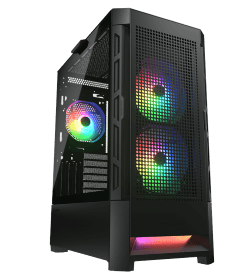
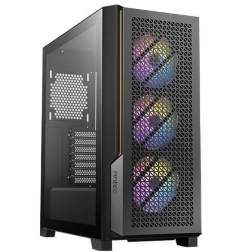
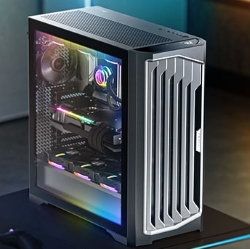
Buying a new computer at the same time? Plan the pair together. A gaming PC monitor and graphics card that suit each other will always beat a mismatched pair with one star component. If you’re also sorting out your desk, our gaming setup guide covers monitor height and lighting. These builds match the three resolutions well:
You’ll find the full range, sorted by resolution, in our gaming computers.
Gaming monitor questions
Can I use a TV as a gaming PC monitor?
Yes, especially for couch gaming. Choose one with HDMI 2.1, a 120Hz mode and a game mode to cut input lag. They’re usually too big to use comfortably at a desk.
Is a gaming monitor good for work too?
Very. Higher resolution gives you more room for windows side by side, and a fast refresh rate makes scrolling smoother. A 1440p gaming computer monitor is a great all-rounder.
Do I need 240Hz?
Only if your PC can run your games at around 240 frames per second. Most players get the best value from 144Hz to 180Hz.
What about 1440p vs 4K on a 27-inch screen?
4K is sharper, 1440p is faster. If you mainly play competitive games, choose 1440p. If you also edit photos or play slower games, 4K is worth a look.