Got an old console controller in the drawer? Good news. Learning how to connect PS4 controller to PC takes about two minutes, and Xbox controllers are even easier. Either one makes a great pad for racing games, platformers, sports titles and anything you’d rather play from the couch than hunched over a keyboard.
This guide covers the PlayStation 4 DualShock 4 and the Xbox Wireless Controller, with cable, Bluetooth and wireless adapter options, plus the settings that make your games actually recognise them. If you’ve got the newer PS5 pad, we’ve written a separate guide on connecting a DualSense.
Quick answer: an Xbox pad works as soon as you plug it in. If you’re working out how to connect PS4 controller to PC, use a cable or Bluetooth, then switch on PlayStation support in Steam so your games recognise it.
Which controller is easier on PC?
The Xbox controller, by a mile. Windows and almost every PC game are built around it, so it works the moment you plug it in. The PS4 controller works well too, but Windows treats it as a generic gamepad, so you’ll lean on Steam or a small helper app to get the most out of it. Neither is a bad choice for a PC gaming controller. It mostly comes down to which shape you prefer in your hands.
How to connect PS4 controller to PC with a USB cable
- Find a micro-USB cable that carries data. The DualShock 4 uses the older, smaller plug, not USB-C.
- Plug it into the controller and into a USB port on your PC.
- Windows installs the driver by itself. The light bar on the back of the controller lights up.
- Check Settings, Bluetooth and devices, Devices. It appears as “Wireless Controller”.
Wired is the most reliable connection, with no pairing to worry about, and it keeps the battery charged as you play. DualShock 4 batteries are getting old now, so many of these controllers spend their second life on a cable anyway.
How to connect PS4 controller to PC with Bluetooth
- Turn the controller off. Hold the PS button for ten seconds if the light bar is on.
- Hold the Share button and the PS button together until the light bar starts double-flashing.
- On the PC, open Settings, Bluetooth and devices, Add device, Bluetooth.
- Choose Wireless Controller. The light bar goes solid once it’s paired.
Desktops don’t always have Bluetooth built in. If you can’t find the Bluetooth option in Settings, a small USB Bluetooth adapter adds it for not much money. Once paired, the controller will reconnect automatically when you press the PS button, as long as it isn’t paired to a PS4 nearby.
Make the PS4 controller work in your games
Because most PC games expect an Xbox pad, you need a translator. The easiest is Steam: open Settings, Controller, and turn on Steam Input for PlayStation controllers. Steam then makes your DualShock 4 work in practically every game in your library, with PlayStation button icons where the game supports them.
For games outside Steam, either add them to your Steam library as non-Steam games, or use a free tool such as DS4Windows, which makes the PS4 controller appear to Windows as an Xbox controller. DS4Windows has to be running in the background while you play.
How to connect Xbox controller to PC
There are three ways, and all of them are simple. Microsoft’s own guide to connecting an Xbox Wireless Controller to a Windows PC covers each one if you want the official version.
1. USB cable
Plug the controller in with a USB-C cable (Series X|S controllers) or micro-USB (Xbox One controllers). Windows recognises it straight away. No setup, no drivers, no fuss.
2. Bluetooth
- Turn the controller on with the Xbox button.
- Hold the small pair button on the top edge, near the charging port, until the Xbox logo flashes quickly.
- On the PC, go to Settings, Bluetooth and devices, Add device, Bluetooth, and pick Xbox Wireless Controller.
Very early Xbox One controllers don’t have Bluetooth. If yours has a plastic top that’s part of the shoulder buttons rather than matching the face, it’s one of those, and you’ll need a cable or the adapter below.
3. Xbox Wireless Adapter
Microsoft’s USB adapter connects controllers using the same wireless system as the console. It supports up to eight controllers at once and lets you plug a headset into the controller’s 3.5mm jack and hear game audio, which Bluetooth doesn’t support. Plug the adapter in, press its button, then press the pair button on the controller.
Tweaks worth knowing for any PC gaming controller
- Update the firmware. The free Xbox Accessories app updates Xbox controllers and lets you remap buttons. Older firmware is a common cause of Bluetooth dropouts.
- Check the batteries. Xbox controllers use AA batteries or a rechargeable pack. Low batteries cause lag and disconnects long before the controller actually dies.
- Keep the adapter in sight. Bluetooth adapters at the back of a desktop under a desk can lose signal. A short USB extension cable that brings the adapter up to desk level fixes most dropouts.
- Disable Steam Input for Xbox pads if buttons double up. Occasionally a game and Steam both read the controller. Turning off Steam Input for that one game sorts it out.
Is a console pad a good PC gaming controller?
For most people, yes. Both the DualShock 4 and the Xbox controller are comfortable, durable and supported by almost everything. Third-party pads can be excellent value too, but check reviews for build quality and whether they use the Xbox input standard, which is what most PC games expect.
Some games are simply better on a controller, especially racing, sports and third-person action games. Keyboard and mouse still wins for shooters and strategy. Plenty of PC players keep both on the desk and swap depending on the game. If you’re arranging your space for both, our gaming setup guide has ideas.
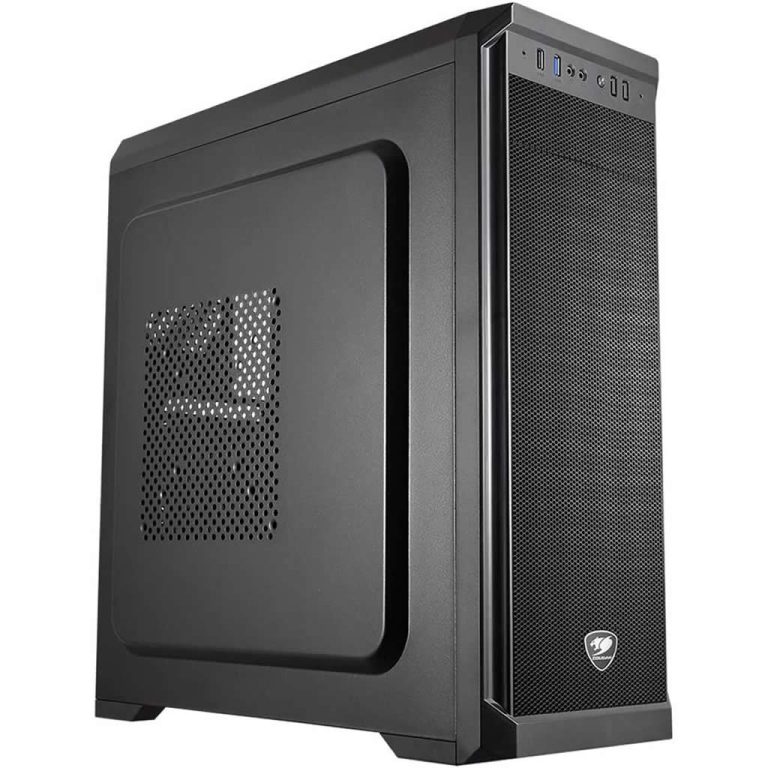
Now that you know how to connect PS4 controller to PC, the remaining piece is a machine that runs your games smoothly. These builds are popular with controller players, and you’ll find more in our gaming computers:
Controller questions we hear a lot
Why isn’t my PS4 controller working in a game?
The game probably expects an Xbox controller. Turn on Steam Input for PlayStation controllers in Steam, and launch the game through Steam.
How to connect Xbox controller to PC without Bluetooth?
Use a USB cable, or Microsoft’s Xbox Wireless Adapter. Both work on any Windows 10 or 11 PC.
How to connect Xbox controller to PC for two or more players?
Pair each controller separately over Bluetooth, or use the Xbox Wireless Adapter, which handles up to eight at once.
Can I use a PS4 controller and an Xbox controller at the same time?
Yes. Windows and Steam handle both happily, which is handy for local co-op.
Does the headphone jack work over Bluetooth?
Not on Xbox controllers. You’ll need a USB cable or the Xbox Wireless Adapter for audio through the controller. On a DualShock 4, the jack works when connected by cable in many setups.
What’s the best PC gaming controller for most people?
An official Xbox controller is the safest bet because everything supports it. If you prefer the PlayStation layout, a DualShock 4 or DualSense works just as well once Steam Input is switched on.
How to connect PS4 controller to PC if Bluetooth won’t find it?
Check the light bar is double-flashing, which means it’s in pairing mode. If it isn’t, press the small reset button on the back near the L2 trigger with a paper clip for a few seconds, then try again.