Here’s how to connect PS5 controller to PC in a couple of minutes, using either a USB cable or Bluetooth. The DualSense works well on Windows 10 and 11, and plenty of players prefer its shape to an Xbox pad. The only real trick is making sure your games see it properly, which is where Steam comes in.
Fastest way: plug the controller into your PC with a USB-C data cable, open Steam, and turn on PlayStation controller support under Settings, Controller. That’s it for most games.
What you need
- A DualSense or DualSense Edge controller.
- A USB-C cable that carries data, not just power. Many cheap phone cables only charge.
- For wireless play, Bluetooth on your PC. Plenty of desktops don’t have it built in, so check for a Bluetooth option in Settings first. If it’s missing, a small USB Bluetooth 5 adapter does the job.
- Steam installed, even if you also play games from other launchers.
Method 1: how to connect a PS5 controller to PC with a cable
This is the simplest option, with the lowest input lag and full support for the controller’s haptics and adaptive triggers in games that use them.
- Plug the USB-C end into the controller and the other end into a USB port on your PC. A port on the back of the case is usually more reliable than a front-panel one.
- Windows will install the drivers by itself. The light bar turns on when it’s connected.
- Open Settings, Bluetooth and devices, Devices. You should see “Wireless Controller” listed. That’s your DualSense.
The cable also charges the controller while you play, so it doubles as a fix for a flat battery mid-game.
Method 2: how to connect PS5 controller to PC with Bluetooth
Going wireless takes about a minute. If you’ve been wondering how to pair PS5 controller to PC without a cable, these are the steps:
- Make sure the controller is off. If the light bar is on, hold the PS button for ten seconds.
- Press and hold the PS button and the Create button (the small button above the left of the touchpad) together for about three seconds, until the light bar flashes quickly. That’s pairing mode.
- On your PC, open Settings, Bluetooth and devices, then choose Add device and Bluetooth.
- Select Wireless Controller from the list. The light bar stops flashing and stays on once it’s paired.
PlayStation’s own guide to pairing a DualSense over Bluetooth covers the same steps and lists Windows 10 and 11 as supported. One thing to know: when you pair the controller with your PC, it forgets your PS5. To use it on the console again, connect it to the PS5 with a USB cable and press the PS button.
Method 3: set up your PS5 controller on PC in Steam
Here’s the part that trips people up. Windows sees the DualSense, but many PC games are written for Xbox controllers. Without help, they’ll either ignore your controller or show the wrong button prompts. Steam fixes this.
- Open Steam and go to Settings, Controller.
- Turn on Enable Steam Input for PlayStation controllers.
- Steam should now list your DualSense. Click it to test the buttons, sticks, gyro and touchpad.
With Steam Input on, almost every game in your Steam library works with the controller. Many games show PlayStation button icons automatically, and you can remap buttons per game if you want to.
Games from other launchers
For games bought on other stores, the easiest approach is to add them to Steam. In your Steam library, choose Add a Game, then Add a Non-Steam Game, and pick the game’s program file. Launch it from Steam and Steam Input will handle your PS5 controller on PC just like it does for Steam games.
Some PC ports, especially PlayStation games released on PC, support the DualSense natively, including haptic feedback and adaptive triggers. These features generally need a wired connection to work fully.
How to connect PS5 controller to PC: wired or wireless?
Both work, so it comes down to how you play. A cable gives the lowest latency, keeps the battery topped up and unlocks the haptics in games that support them. It’s the better choice for competitive games and for sitting at a desk.
Bluetooth is nicer from the couch. Expect roughly six to ten hours of play on a charge, depending on how hard the rumble works. If you’re learning how to connect a PS5 controller to PC for the first time, start with the cable to check everything works, then pair it wirelessly once you know the controller and Steam are happy.
When your PS5 controller won’t connect
- Nothing happens when you plug it in: try another cable. A charge-only cable is the most common culprit by far.
- It won’t show up over Bluetooth: check the light bar is flashing fast, not slow. A slow pulse means it’s trying to reconnect to the PS5 instead.
- It pairs, then disconnects: move the PC’s Bluetooth adapter closer. Adapters plugged into the back of a desktop under a metal desk can struggle. A USB extension cable that brings the adapter up onto the desk often fixes it.
- Buttons are wrong in a game: make sure Steam Input is on, and launch the game through Steam.
- Still stuck: reset the controller. There’s a tiny hole on the back near the L2 button. Press it with a paper clip for five seconds, then pair it again.
It’s also worth updating the controller’s firmware every so often. Sony offers a firmware updater for Windows, or you can update it by connecting it to a PS5.
Is a PS5 controller good for PC gaming?
Very. The DualSense is comfortable, well built and has a better gyro than most pads, which some players use for aiming. Battery life is shorter than an Xbox controller’s, but playing wired removes that problem entirely. If you’re setting up a controller corner, our gaming setup guide has tips on placement and cables.
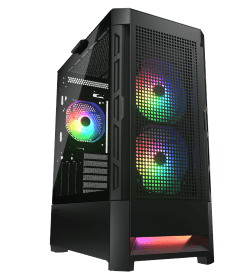
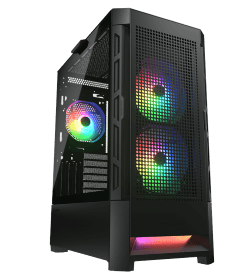
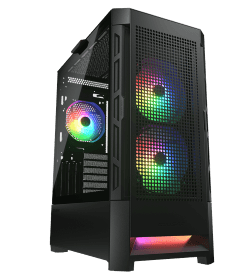
Knowing how to connect PS5 controller to PC is half the job. The other half is a PC that runs your games smoothly. Our gaming computers range from 1080p machines to 4K systems, and these three are popular with controller players:
PS5 controller on PC: quick answers
Can I use a PS5 controller on PC without Steam?
Yes, in games that support it natively. For other games, a free tool such as DS4Windows can make the DualSense appear as an Xbox controller, though Steam is the simpler option.
Do the adaptive triggers work on PC?
In supported games, yes, usually when the controller is connected by cable. Over Bluetooth, many games only use standard rumble.
Why does my controller keep reconnecting to my PS5?
It remembers the last device it paired with. Pair it with the PC again, or switch off the PS5 while you play on the computer.
How to connect PS5 controller to PC Bluetooth if my PC has no Bluetooth?
Add a USB Bluetooth adapter. They’re inexpensive, take a minute to install and work with any Windows 10 or 11 PC.
How to pair PS5 controller to PC again after using it on the PS5?
Put it back into pairing mode by holding the PS and Create buttons until the light bar flashes, then select it again in Windows’ Bluetooth settings. You may need to remove the old “Wireless Controller” entry first.
Can I use two controllers at once?
Yes. Each PS5 controller on PC pairs separately, and Steam handles several pads for local co-op without any extra setup.