SSD vs HDD is one of the easiest hardware questions to answer, and one of the most important. If your computer still starts from a spinning hard drive, switching to a solid state drive is the single biggest speed-up you can give it. Everything feels quicker: starting Windows, opening apps, loading games, searching files.
But storage has more options than it used to, and terms like NVMe, Gen 4 and Gen 5 can make a simple choice feel complicated. Here’s how it all fits together.
Short version: run Windows, apps and games from an NVMe SSD. Use a hard drive only for bulk storage and backups. For most people, a 1TB or 2TB Gen 4 NVMe drive is the sweet spot.
SSD vs HDD: how they work
A hard disk drive (HDD) stores data on spinning metal platters, read by a tiny arm that moves across them, a bit like a record player. Every time it needs a file, the arm has to physically move into position. That takes milliseconds, which is an eternity for a computer.
A solid state drive (SSD) stores data on flash memory chips with no moving parts. It can reach any file almost instantly, and read many files at once. That difference in how they find data, more than raw transfer speed, is why an SSD makes a PC feel so much more responsive.
The numbers side by side
| Hard drive | SATA SSD | NVMe SSD (Gen 4) | |
|---|---|---|---|
| Typical read speed | Up to about 250MB/s | Up to about 550MB/s | Up to about 7,000MB/s |
| Finding small files | Slow | Very fast | Very fast |
| Noise | Audible whirr and clicks | Silent | Silent |
| Shock resistance | Fragile when running | Robust | Robust |
| Cost per TB | Lowest | Low to medium | Medium |
| Best for | Bulk storage, backups | Upgrading older PCs | Windows, apps and games |
HDD vs SSD for gaming
Modern games are designed with SSDs in mind. Many big releases now list an SSD as required, not just recommended, because open-world games stream data constantly as you move. On a hard drive, that shows up as long loading screens, textures that pop in late and stutter as the game waits for data.
In the hdd vs ssd comparison for games, there’s no contest. Even a basic SSD transforms the experience. Hard drives are only suitable for older or very light games, or for archiving games you’re not currently playing.
NVMe vs SSD: what’s the difference?
This is a common source of confusion, because “NVMe vs SSD” isn’t quite a fair comparison. NVMe drives are SSDs. The difference is how they connect.
- SATA SSDs use the same connection as hard drives, which caps them at around 550MB/s. They come as 2.5-inch drives or as M.2 sticks.
- NVMe SSDs plug into an M.2 slot on the motherboard and talk directly to the processor over PCIe lanes, which is many times faster.
Both look similar in the M.2 form, so check the listing says NVMe. The NVM Express article on Wikipedia explains the standard in depth. So when people compare NVMe vs SSD, they really mean NVMe vs SATA.
Gen 3, Gen 4 or Gen 5?
NVMe drives come in PCIe generations. Each roughly doubles the maximum speed of the last: around 3,500MB/s for Gen 3, 7,000MB/s for Gen 4 and up to around 14,000MB/s for Gen 5.
In everyday use and gaming, the jump from Gen 4 to Gen 5 is hard to notice. Load times are limited by other things, like the processor unpacking game data. Gen 5 drives also run hotter and usually need a heatsink. Where they do shine is moving huge files, such as 4K and 8K video footage. For most people, a quality Gen 4 drive is the smart buy.
SSD vs HDD reliability
Reliability is another point in the SSD vs HDD debate. Hard drives have moving parts that wear out, and a knock while they’re running can damage them. SSDs have no moving parts, though their flash cells wear slowly with each write. In practice, a quality SSD outlasts most hard drives in home use. Either way, keep backups: any drive can fail, and the hdd vs ssd question doesn’t change that.
Quality matters more than the headline speed
Two drives with the same advertised speed can perform very differently. A few things worth checking:
- Flash type: TLC flash generally holds its speed and lasts longer than cheaper QLC flash, especially when the drive is filling up.
- Endurance: listed as TBW (terabytes written). Higher is better, though most home users never get close to the limit.
- Brand and warranty: stick to known makers with five-year warranties where you can.
How much storage do you need?
- Office and home use: 512GB to 1TB.
- Gaming: 1TB at minimum. Big games can take 100GB or more each, so 2TB is more comfortable.
- Photo and video editing: 2TB or more on fast NVMe for active projects, plus a larger drive or external storage for archives.
Storage prices have risen over the past year along with memory, as explained in our article on RAM prices in 2026. Buying the capacity you need up front is usually the better value.
Do hard drives still make sense?
Yes, in the right role. Hard drives are still the cheapest way to store many terabytes, which makes them great for photo archives, media libraries and backups. Just don’t run Windows or your games from one. A common setup is a fast NVMe SSD for everything you use daily, with a large hard drive in the case or an external drive for backups.
Upgrading an older PC from HDD to SSD
If your computer still boots from a hard drive, this is the upgrade to make first. Most desktops have a spare SATA port or M.2 slot. You can clone your existing drive to the new SSD with free software, or do a fresh Windows install for the cleanest result. The difference in day-to-day speed is dramatic. In an SSD vs HDD upgrade on an older PC, start-up times often drop from a minute or more to well under half that, and it’s one of the cheapest ways to make an old PC feel new.
SSD vs HDD: the verdict
For your main drive, the SSD vs HDD question has a clear winner: an NVMe SSD, every time. Hard drives remain useful as bulk storage. And unless you work with very large video files, a Gen 4 NVMe drive gives you all the speed you’ll notice.
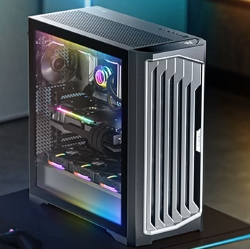
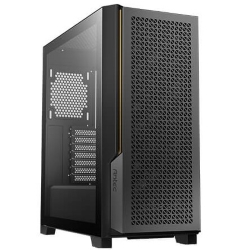
Every system we build boots from an NVMe SSD. Creative builds get more and faster storage. A few examples, with more in our video editing computers:
Storage questions
Is SSD better than HDD?
For speed, noise and durability, yes. Hard drives only win on cost per terabyte for bulk storage.
Is HDD vs SSD still a choice for a new gaming PC?
Not for the main drive. Every new gaming PC should boot from an SSD. A hard drive can be added later for extra storage.
How long do SSDs last?
Typically many years of normal use. Most home users will replace the PC long before the SSD wears out.
Can I use both an SSD and an HDD?
Yes, and it’s a great combination: the SSD for Windows, apps and games, the hard drive for archives and backups.
Is NVMe vs SSD a real choice?
Not really. NVMe is a faster type of SSD. If your motherboard has an M.2 slot that supports NVMe, choose an NVMe drive.
Does a Gen 5 SSD make games load faster?
Barely. Gen 4 and Gen 5 drives load games in almost the same time. Gen 5 helps most with large file transfers.