
Knowing how to check CPU temperature is one of the most useful bits of PC know-how you can have. Heat is behind a surprising number of problems: fans that roar, games that stutter after twenty minutes, and computers that shut down without warning. A quick look at the numbers tells you whether your processor is comfortable or cooking.
Quick answer: Windows doesn’t show processor temperature by itself. Install a free tool such as HWiNFO or Core Temp, or check your BIOS. A normal CPU temp is roughly 30 to 50°C at idle and 60 to 85°C while gaming.
Why Windows doesn’t show it
Task Manager shows your graphics card’s temperature on the Performance tab, but not the processor’s. Windows has never displayed it directly, so you need either the BIOS or a small monitoring app. Both are free and take a couple of minutes.
How to check CPU temperature: four free ways
1. HWiNFO (the most detailed)
HWiNFO is the tool most PC builders use. Download it, run it, and choose Sensors-only when it asks. You’ll see a long list of readings. The one that matters:
- Intel: look for “CPU Package”, the overall temperature of the chip.
- AMD: look for “CPU (Tctl/Tdie)”.
HWiNFO also shows the minimum, maximum and average for each sensor since you opened it, which is perfect for checking how hot things got during a gaming session.
2. Core Temp (the simplest)
Core Temp is small and simple. It shows the temperature of each core and can put the reading in your system tray, next to the clock, so you can glance at it any time. Untick any bundled extras during installation.
3. Ryzen Master (AMD only)
AMD’s own utility shows temperatures, clock speeds and power use for Ryzen processors. It also includes tuning options, which you can safely ignore if you’re only checking temperatures.
4. Your BIOS
Restart, press Delete or F2 as the PC starts, and look for a hardware monitor or “PC health” section. This shows the temperature with the computer idling, so it’s useful for spotting a cooler that’s not making contact, but it can’t tell you how hot things get in a game.
How to see CPU temp while gaming
The real test is under load. If you want to know how to see CPU temp in the middle of a game, use an on-screen overlay. MSI Afterburner with RivaTuner Statistics Server can display processor and graphics card temperatures in a corner of the screen as you play. Alternatively, leave HWiNFO running in the background, play for half an hour, then check the maximum values it recorded.
What’s a normal CPU temp?
| Situation | Typical range | What it means |
|---|---|---|
| Idle, desktop | 30 to 50°C | Normal. Higher in a hot room. |
| Gaming | 60 to 85°C | Normal for most modern chips. |
| Heavy all-core loads like rendering | 80 to 95°C | Expected on many high-end chips. |
| Hitting the maximum (95 to 105°C) | At the limit | The chip will slow itself down. |
Those upper numbers surprise people, but modern processors are designed to run warm. AMD’s Ryzen 9000 chips, for example, will happily boost until they approach 95°C under heavy load, then manage their speed to stay there. Intel’s chips have similar limits. That’s not damage, it’s the chip squeezing out all the performance its cooler allows.
What’s not normal is an idle temperature of 70°C, or a processor hitting its limit after a few minutes of a light game. That points to a cooling problem.
Signs your processor is running too hot
- Fans ramp up loudly and stay there, even during light tasks.
- Games run well at first, then stutter or drop frames after a while. That’s thermal throttling.
- The computer shuts down or restarts by itself under load.
- The case feels hot to touch, or warm air barely moves out of the back.
How to lower your CPU temp
- Clean the dust. Dust filters and heatsink fins clog over time, especially near carpet or pets. A can of compressed air and a few minutes every couple of months makes a big difference.
- Give it room. Keep the case at least 10cm from walls, and out of closed cupboards. Our gaming setup guide covers where a PC should live.
- Check the airflow direction. Front and bottom fans should pull air in, rear and top fans should push it out.
- Set a fan curve. In the BIOS, let fans speed up earlier as temperatures rise.
- Replace the thermal paste. After several years it dries out. Fresh paste can drop temperatures noticeably.
- Consider a better cooler. High-end processors benefit from a large tower cooler or a 240mm or 360mm liquid cooler.
- Try an efficiency mode. Many AMD boards offer an “Eco Mode”, and Intel boards let you set power limits. You’ll lose a little performance in heavy work but gain a lot of heat headroom.
And remember the room. On a 40°C day in an Australian summer, every component runs hotter. That’s normal, and good cooling simply keeps it within safe limits.
How to check CPU temperature on office PCs and laptops
The same tools work on any Windows PC, including older office machines and laptops. If a work computer won’t let you install software, the BIOS method is your best option, or ask your IT team. Office PCs with small, quiet coolers often run warmer than gaming machines under load, so don’t be alarmed by readings in the 80s during a big spreadsheet or video call, as long as they settle quickly afterwards.
How to check CPU temp on a new PC
If you’ve just bought or built a computer, it’s worth running a quick check in the first week. Open HWiNFO, run a demanding game for 20 to 30 minutes, then look at the maximum readings. If your processor sits comfortably inside the ranges above, you’re good. If it’s hitting its limit in a game, something’s off with the cooler mounting or airflow, and the sooner you raise it with whoever built it, the better.
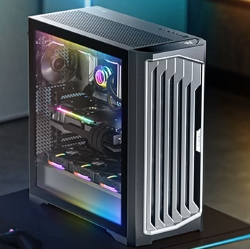
Every system we build is stress tested under load before it leaves, with cooling matched to the processor. These liquid-cooled builds are designed to stay cool through long sessions:
Want to know more about the chip itself? Our guide to what a CPU does covers the basics.
CPU temp questions
Is 90°C too hot for a CPU?
During heavy rendering on a high-end chip, it can be normal. During gaming, it suggests the cooler is struggling. Check for dust and airflow first.
Can high temperatures damage my processor?
Modern processors protect themselves by slowing down or shutting off before damage occurs. Running hot for years isn’t ideal, though, so it’s worth fixing.
Why is my CPU temp high at idle?
Background apps, a poorly seated cooler, dried thermal paste or blocked airflow are the usual suspects. Check Task Manager for programs using the processor.
Does liquid cooling keep the CPU cooler?
Often, especially under sustained load. A good air cooler is also excellent. Liquid coolers mainly shine with high-power chips and in compact or quiet builds.
How often should I check my CPU temp?
There’s no need to watch it constantly. Check when you first get a PC, after cleaning or upgrading it, and whenever it starts sounding louder or performing worse than usual.
How to check CPU temperature without installing anything?
Use the BIOS. Restart, press Delete or F2, and find the hardware monitor section. It only shows idle readings, but it needs nothing installed.
What’s a normal CPU temp for a laptop?
Laptops run hotter than desktops because of their small coolers. 80 to 95°C while gaming is common and usually within design limits.