Knowing how to check PC specs comes in handy more often than you’d think: checking whether a new game will run, working out what to upgrade, selling an old computer or answering a support question. The good news is that Windows 11 has everything you need built in. You don’t need to open the case or download anything.
Fastest way: press Ctrl, Shift and Esc to open Task Manager, then click Performance. Click CPU, Memory, Disk and GPU in turn to see your processor, RAM, storage and graphics card.
1. Settings: the quick overview
Open Settings, choose System, then About at the bottom. Under “Device specifications” you’ll see:
- Processor: the exact model, like Intel Core Ultra 7 265 or AMD Ryzen 7 9850X3D.
- Installed RAM: the total memory.
- System type: 64-bit, which is what you want.
Scroll down to “Windows specifications” for your Windows edition and version. This page is the easiest answer to how to see PC specs at a glance, though it doesn’t show the graphics card.
2. Task Manager: the most useful view
Task Manager’s Performance tab shows the details that matter for gaming and upgrades:
- CPU: model name, number of cores and threads, current speed and cache sizes.
- Memory: total RAM, speed, how many slots are used and how much is in use right now.
- Disk: each drive, whether it’s an SSD or HDD, and its capacity.
- GPU: the graphics card model, its dedicated memory (VRAM) and driver version.
If you only learn one way to check computer specs, make it this one.
What graphics card do I have?
This is the question we hear most, because it decides what games your PC can run. Three ways to answer it:
- Task Manager: Performance tab, then GPU. If you see two (GPU 0 and GPU 1), one is usually the processor’s built-in graphics and the other is the graphics card.
- Device Manager: right-click the Start button, choose Device Manager, and expand Display adapters.
- DirectX Diagnostic Tool: press Windows and R, type dxdiag and press Enter. The Display tab shows the card’s name and memory.
Note the exact model, not just the brand. “NVIDIA GeForce” covers everything from entry-level to the fastest cards available. “RTX 5070” tells you much more.
How much RAM do I have?
Settings, System, About shows the total. For more detail, Task Manager’s Memory page shows the speed (for example 6000MT/s), how many slots are used out of the total, and whether it’s DDR4 or DDR5, which is handy before buying an upgrade. If you’re wondering how much RAM do I have compared with how much I need, our guide Is 16GB RAM enough? helps you decide.
3. System Information: the full detail
Search the Start menu for System Information (or press Windows and R and type msinfo32). It lists almost everything, including:
- BaseBoard Manufacturer and Product: your motherboard model, which you need before buying a new processor or memory.
- BIOS Version/Date: useful when checking for BIOS updates.
- Installed Physical Memory: total RAM.
4. Command line options
If you’re comfortable typing commands, open Command Prompt or Windows Terminal and type systeminfo. It prints a summary of your Windows version, processor, memory and more. It’s a quick way to copy everything into an email for a support request.
5. Free tools for more depth
For enthusiasts, two small free tools give the most complete picture. CPU-Z shows the processor, motherboard and memory in detail, including the exact model of each RAM stick. GPU-Z does the same for the graphics card. Download them only from their official websites.
6. Look at the box or the invoice
It sounds obvious, but the original invoice or product listing often has the full spec, including the power supply and case, which Windows can’t tell you. Keep a copy somewhere safe. Every system we sell lists its full spec on the invoice for exactly this reason.
How to check computer specs against a game’s requirements
Once you know your specs, compare them with the game’s listed requirements, usually on its store page:
- Graphics card: the most important line. Compare the exact model, not just the brand.
- Processor: a newer generation can be faster than an older chip with a bigger number.
- Memory: 16GB is the common minimum now.
- Storage: check you have enough free space, and whether an SSD is required.
If you’re unsure how your processor compares, our explainer on what a CPU does covers the basics.
How to see PC specs on a laptop
Exactly the same way. All of these methods work on Windows 11 laptops. Laptop graphics are named slightly differently, such as “RTX 5060 Laptop GPU”, and they usually run slower than the desktop card with the same number, which is worth remembering when comparing.
How to check computer specs on a work PC
On a work computer managed by an IT team, some tools like System Information may be locked down, but Settings and Task Manager almost always work. If you need the details for a support request, a screenshot of Settings, System, About plus Task Manager’s Performance tab covers most questions. For anything more, ask your IT team rather than installing software.
Keep a record of your specs
It’s worth saving your specs somewhere once you’ve found them. Take a screenshot of Task Manager’s Performance tab and the About page in Settings, and keep them with your invoice. When something goes wrong, or when you’re comparing a new game’s requirements, you won’t need to work out how to check PC specs all over again.
When it’s time for an upgrade
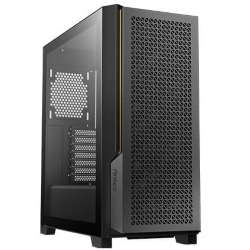
Now that you know how to check PC specs, you can see where your machine stands. If the graphics card, processor or memory falls short of the games and apps you use, it might be time for an upgrade or a new system. Every PC in our desktop PCs range lists its exact processor, graphics card, memory and storage up front. A few examples:
PC spec questions
How do I find my motherboard model?
Open System Information and look for BaseBoard Product, or use CPU-Z’s Mainboard tab.
What graphics card do I have if Task Manager shows two GPUs?
One is your processor’s built-in graphics and the other is the dedicated graphics card. The one with its own “dedicated GPU memory” is the graphics card.
What graphics card do I have on a laptop?
Task Manager’s GPU page works on laptops too. Many laptops show two GPUs: the processor’s built-in graphics for saving battery, and the dedicated card for games.
How much RAM do I have available right now?
Task Manager’s Memory page shows “In use” and “Available”. If available memory is regularly very low while you work, more RAM will help.
How do I check my Windows version?
Press Windows and R, type winver and press Enter. A small window shows your Windows version and build number.
How do I check my power supply?
Windows can’t see it. Check the invoice, or look at the label on the power supply itself inside the case, with the PC switched off and unplugged.
How to check PC specs without logging in?
Restart into the BIOS (press Delete or F2 as the PC starts). Most BIOS screens show the processor, memory and storage.