Learning how to overclock CPU and graphics card speeds is a rite of passage for a lot of PC enthusiasts. Done carefully, it squeezes a bit of extra performance out of hardware you already own. Done carelessly, it causes crashes, corrupted files and a lot of frustration. This guide walks through doing it the careful way.
Before you start: modern processors and graphics cards already boost themselves aggressively, so the gains from manual overclocking are smaller than they used to be, often just a few per cent in games. It’s a fun project, but not a magic fix for a slow PC.
What overclocking actually does
Every processor and graphics card runs at a set of speeds the manufacturer has decided are safe for every chip of that model. Many individual chips can run a little faster. Overclocking raises those speeds, sometimes with a touch more voltage, so the chip does more work each second.
The basic idea behind how to overclock GPU and processor speeds is the same. The trade-off is heat, power use and stability. Push too far and the chip makes mistakes, which shows up as crashes or errors. Push the voltage too far for too long and you can shorten its life.
What you need first
Before you look at how to overclock CPU settings, make sure you have these covered:
- An unlocked processor. On Intel, that’s a “K” model, like the Core i7-14700K or Core Ultra 9 285K. Our guide to Intel’s model names explains the suffixes. Nearly all current AMD Ryzen chips are unlocked.
- A motherboard that allows it. Intel needs a Z-series board. AMD supports overclocking on B-series and X-series boards, but not most A-series ones.
- Good cooling. A strong tower cooler or a 240mm or larger liquid cooler. Overclocking on a stock cooler is a dead end.
- Monitoring and testing tools. HWiNFO for temperatures, plus a stress test and a few of your own games.
Also check your warranty. Overclocking can affect what the manufacturer covers, so read the terms before you change anything.
How to overclock CPU speeds on AMD: start with PBO
For Ryzen processors, the best approach is usually not a manual overclock at all. AMD’s Precision Boost Overdrive (PBO) lets the chip boost higher and for longer within limits you control.
- Enter the BIOS (press Delete as the PC starts).
- Find the PBO setting, usually under an “AMD Overclocking” or “Precision Boost Overdrive” menu, and set it to Enabled or Advanced.
- Optionally, use Curve Optimizer with a small negative offset, such as minus 10, on all cores. This lowers voltage slightly, which lets the chip boost higher while running cooler.
- Save, restart and test.
A manual all-core overclock on Ryzen often lowers performance in games, because it stops the chip from boosting individual cores higher. PBO with a mild Curve Optimizer offset is the sweet spot for most people.
How to overclock CPU speeds on Intel
On an unlocked Intel chip with a Z-series board, you raise the multiplier, which sets the clock speed.
- In the BIOS, find the CPU core ratio setting.
- Raise the performance-core ratio by one step (100MHz) at a time.
- Leave voltage on Auto at first. If the system becomes unstable, either step back or add a very small amount of voltage.
- Test after each change.
If you’re working out how to overclock CPU speeds on a 13th or 14th generation chip, read this first. A word of caution for those processors: Intel released microcode updates to address a stability issue on some of these processors, and it recommends its default settings. Keep the BIOS up to date, avoid raising voltage, and consider leaving these chips at stock. For many owners, the safer gain is from enabling the memory’s rated XMP profile, which you should do anyway.
Stress testing: the part you can’t skip
Knowing how to overclock CPU clocks is only half of it. An overclock isn’t finished until it’s proven stable. A simple routine:
- Run a heavy processor test, such as Cinebench or OCCT, for 15 to 30 minutes.
- Watch temperatures in HWiNFO. Our guide on checking CPU temperature covers what’s safe.
- Play your most demanding games for an hour or two.
- Use the PC normally for a few days. Random crashes or app errors mean it’s not fully stable, even if the stress test passed.
If anything fails, step back a notch. A slightly slower but rock-solid PC beats a fast one that crashes during an important match or a long export.
How to overclock GPU speeds with MSI Afterburner
Graphics cards are easier and safer to overclock, because it’s all done in software and resets the moment you restart without saving a profile. MSI Afterburner works with most NVIDIA and AMD cards, not just MSI’s own. Here’s how to overclock GPU clocks step by step:
- Open Afterburner and move the Power Limit slider to the maximum your card allows.
- Raise the Core Clock by 25 to 50MHz and click apply.
- Run a graphics benchmark or a demanding game for ten minutes. Watch for crashes, flickering or odd coloured dots, called artifacts.
- Keep going in small steps until you see problems, then back off by 25 to 50MHz.
- Repeat the process for the Memory Clock, in larger steps.
- Save the result as a profile.
If you’d rather not fiddle, NVIDIA’s app includes an automatic tuning feature, and AMD’s software has one-click tuning options too. They’re conservative, but safe.
On high-end cards that draw a lot of power, make sure the power cable is pushed in fully and isn’t bent sharply near the connector. That matters more than any slider.
The alternative: undervolting
Plenty of enthusiasts now do the opposite. Undervolting lowers the voltage while keeping speeds similar, which cuts heat, power and fan noise, often with little or no loss in frame rates. Many modern graphics cards run cooler and quieter at almost the same performance with a mild undervolt. If your PC is loud rather than slow, this is usually the better project. And if you came here looking for how to overclock GPU performance on a card that already runs hot, try undervolting first.
Is overclocking worth it in 2026?
For the processor, often not much. The best gaming chips already run near their limits out of the box. For the graphics card, a careful overclock might add a few per cent. Enabling your memory’s XMP or EXPO profile and keeping your PC cool and dust-free will usually do more than an aggressive overclock. That’s the honest answer to how to overclock CPU and GPU hardware in 2026: carefully, in small steps, and with modest expectations.
If you’d like more performance without the tinkering, a faster graphics card is the biggest upgrade for games. These systems use unlocked processors and the cooling to support them:
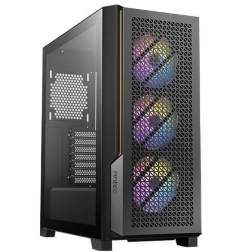
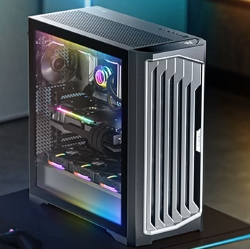
More options are listed in our gaming computers.
Overclocking questions
Can overclocking damage my PC?
Raising clock speeds alone rarely does. Pushing too much voltage, or running very hot for long periods, can shorten a chip’s life. Stay conservative.
How to overclock CPU on a laptop?
Most laptops don’t allow it, and their small coolers leave no headroom. Undervolting, where supported, is a better option.
How to overclock GPU memory safely?
Raise it in steps of 100 to 200MHz and watch for artifacts or crashes. Faster memory can also reduce performance if it starts correcting errors, so test frame rates, not just stability.
Do I need to overclock my RAM?
Just enable its XMP or EXPO profile in the BIOS so it runs at its rated speed. Anything beyond that is for enthusiasts.
How to overclock GPU on a laptop?
Laptop graphics are usually locked or limited by cooling. Some gaming laptops offer performance modes in their own software, which is the safest option.
Is it worth learning how to overclock CPU chips at all?
If you enjoy tinkering, yes. It teaches you a lot about your PC. If you just want more speed, spend the effort on cooling and a faster graphics card.
How do I undo an overclock?
For the processor, load the BIOS defaults. For the graphics card, click reset in Afterburner or restart without applying the profile.